Job Costing Software Buyer's Guide: What to Actually Look For
Every job costing tool's homepage says roughly the same thing: track your costs, see your margin, stop losing money on jobs. That is true of all of them and useless as a way to pick one. Demos are built to look identical — a clean dashboard, a pie chart, a happy contractor testimonial. The differences that actually matter show up three weeks in, after the trial account has real jobs in it and you are standing in a supply house parking lot deciding whether to bother logging the receipt.
This is not a shootout between named products — the site has head-to-head breakdowns for that. This is the list of questions to ask before you commit to any of them, and what a good answer sounds like versus a bad one. If you want the underlying concept first, start with our job-costing guide. If you are still deciding whether to leave the spreadsheet at all, read apps vs. spreadsheets before this one.
1. Does it capture cost in the field, or only at a desk?
This is the single biggest real differentiator, and it is the one most demos hide because it does not show up until you are actually using the thing. Every tool can display a nice job-cost report. The question is where the data in that report came from and how much friction stood between the cost happening and someone writing it down.
Two tools can have an identical-looking "job cost report" screen. One fills that screen from receipts snapped at the counter, right after the purchase. The other fills it from an office manager retyping a shoebox every other Friday, weeks after the money left. The report looks the same. The number in it is not the same kind of true — one reflects this week, the other reflects whatever survived three weeks in somebody's truck console.
Ask it directly in the demo: "Show me the exact steps a guy on a ladder takes to log a $40 fitting he just bought." If the honest answer involves a laptop, a login, or "you'd enter that at end of day," that is a desk tool wearing a field-tool label. If the answer is a phone camera and a couple taps, that is field capture. Everything else in this guide matters less than this one.
2. Does it handle photo and receipt capture, or just line items?
Related question, different failure mode. Some tools let you log a cost but expect you to type in the vendor, amount, and category yourself — which is exactly the friction that kills field capture even when the tool is technically mobile. A crumpled receipt typed in wrong, or not typed in at all, is worse than no system, because it looks like the job is tracked when it is not.
What actually holds up: point the phone at the receipt, and the app reads the vendor, the amount, and the date off the paper itself, then routes it to a cost category and a specific job without someone re-keying anything. That is the difference between "we support photo attachments" (a scanned image sitting in a folder, still needing manual entry) and receipt capture that actually replaces the typing.
3. Does it show margin per job, or only company-wide?
A P&L tells you how the business did last quarter. It does not tell you that your tile showers keep landing at 12% while your kitchens land at 30% — because it pools every job together into one number. If a tool's reporting stops at company totals, you can be profitable overall while three specific jobs are quietly bleeding you, and you will not find out until tax time.
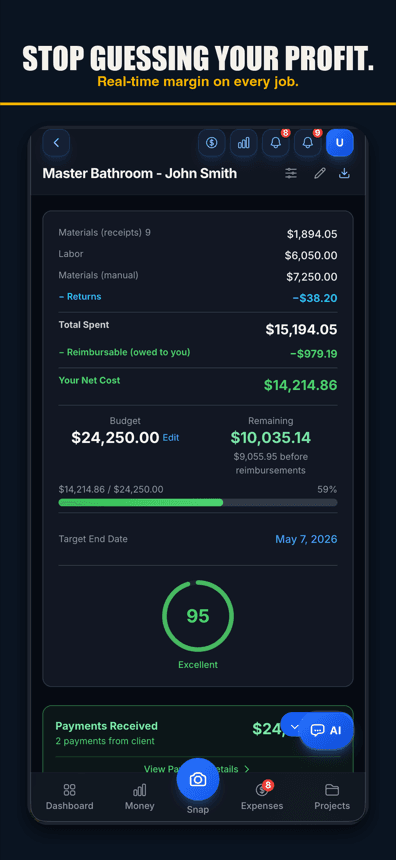
The test: pull up a single job, mid-project, and ask what it shows for margin right now — not at close-out, not after the accountant runs numbers next quarter. If it can show live budget versus actual spend on that one job while it is still running, you can catch a job going sideways in week two instead of finding out it lost money after it is already done. If the tool can only tell you margin after everything is closed out and reconciled, it is a reporting tool, not a decision tool.
4. Is pricing per-seat or flat?
Per-seat pricing looks cheap on the pricing page and gets expensive the day you hire. Add a second phone in the field and the bill doubles, whether or not that person is the one entering costs. For a crew that grows and shrinks by the season — a sub here, a helper there — per-seat math turns every staffing decision into a software math problem too.
Flat, tiered pricing (a project cap and a receipt cap instead of a head count) scales with how much work you are actually running, not with how many phones have the app on them. Before you sign up for anything, ask straight: "If I add three crew members next month, what does my bill do?" Get the actual number, not the general "pricing scales with your team" line.
5. Does it export cleanly to your bookkeeper's software?
Every tool claims QuickBooks compatibility somewhere on its site. Fewer of them mean it in a way your bookkeeper will thank you for. The real test is the file that comes out the other end: does it carry the job name, the vendor, the amount, and a mapped cost category on every line, or does your bookkeeper get a pile of numbers they have to decode and re-categorize by hand? A CSV with no job tags on it is not really an export — it is a spreadsheet with extra steps.
| Ask this | Bad answer | Good answer |
|---|---|---|
| Where does the receipt live once captured? | Local photo library, unattached to any job | Filed to a specific job, scanned and categorized, in one step |
| Can I see margin on a job right now? | Only after month-end close | Live budget vs. spend while the job is open |
| What happens to my bill if I add crew? | Per-seat cost multiplies | Flat tier — bill is the same until you outgrow the project or receipt cap |
| What does the export file give my bookkeeper? | Raw numbers, no job or category | Job name, vendor, amount, and account per line — ready to import |
| What does the free plan actually let me do? | A 14-day countdown, then a paywall | A real, ongoing free tier with a project and receipt cap, not a timer |
6. Is there a free tier you can actually use before you buy?
A lot of "free" software is a 14-day trial wearing the word free. That is fine for evaluating a feature list, but it tells you nothing about whether the tool survives contact with a real job — you cannot test whether field capture holds up over a full remodel in two weeks, and you definitely cannot see whether your crew keeps using it once the novelty wears off.
A free tier worth anything has real caps, not a clock: a limited number of projects, a limited number of receipts per month, but the actual core feature turned on — not a crippled demo mode. That lets you run one real, smaller job through the whole tool before you hand over a card number, and see for yourself whether the field-capture answer from question one was true in practice.
How Job Cost Pro answers these, for reference
We built Job Cost Pro around exactly these six questions, so here is where it lands on its own checklist — full disclosure, it is our app:
- Field capture: AI receipt scanning at the counter — snap it, and it reads the vendor and amount and suggests the job when the receipt names it or you scan at the jobsite — one tap files it before you are back in the truck.
- Margin visibility: per-job profit so far and budget-versus-spend, not a number you only see at close-out.
- Pricing: flat tiers, not per-seat — Free at $0, Pro at $29.99/mo, Contractor at $49.99/mo. Adding crew does not multiply the bill.
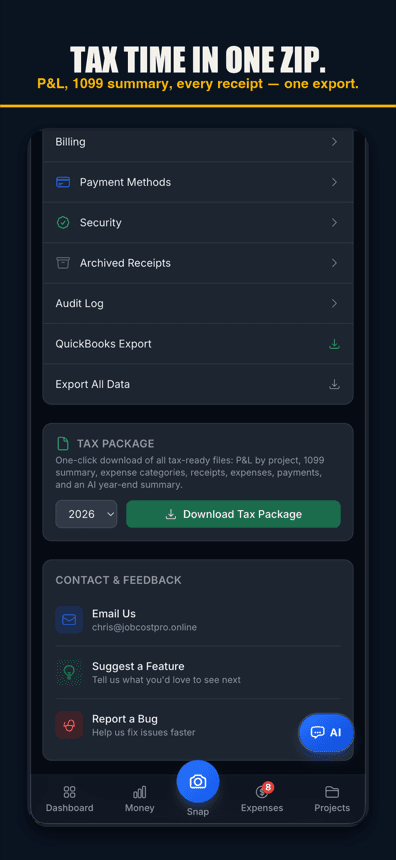
- Export: QuickBooks-ready CSV, IIF, and a full ZIP bundle on the Pro tier, with the job and cost category already mapped on every line.
- Free tier: genuinely usable — 3 projects, 50 receipts a month, full AI scanning, not a stripped-down trial with a countdown clock.
Live job margin, and the export your bookkeeper actually wants
Whatever you end up choosing, run it through the six questions above with a real job in it before you commit to a paid tier. If you are already comparing specific tools head to head, see the Joist or Buildertrend breakdowns for the direct comparisons.
Job Cost Pro is free on the App Store — 3 projects, 50 receipts a month, full AI scanning. No credit card. Get it here.
Track your next job with Job Cost Pro
Scan receipts, confirm the suggested job, and see your recorded costs against your budget. Start with the free plan in your browser or get the iPhone app.
Free plan available. Some features require a paid plan.
FAQ
What is the most important feature in job costing software?
Whether it captures cost in the field or only at a desk. A tool that lets you log a receipt at the supply house in seconds keeps your numbers true; one that requires typing costs in later at a laptop loses the small receipts, and small receipts are where margin actually leaks.
Should job costing software be per-seat or flat pricing?
Flat, tiered pricing scales better for a crew that changes size seasonally — adding a sub or a helper does not multiply your bill. Per-seat pricing can look cheaper at one or two users and get expensive fast once you grow.
Does job costing software need to show margin per job?
Yes. A company-wide P&L can look healthy while specific jobs are losing money underneath it. Per-job, live margin is what lets you catch a job going sideways in week two instead of finding out at tax time.
How do I know if a free trial is actually usable before buying job costing software?
Check whether it is a real free tier with caps (a set number of projects or receipts, core features on) or a countdown trial that locks the app after 14 days. A capped free tier lets you run one real job through the whole tool before paying; a countdown trial only lets you look at it.
What should a clean export to my bookkeeper include?
Every line should carry the job name, vendor, amount, date, and a cost category already mapped to a bookkeeping account — QuickBooks-style CSV or IIF. If the export is just raw numbers with no job tags, your bookkeeper is stuck re-categorizing everything by hand.
Is job costing software worth it for a small contractor?
Yes, arguably more than for a large one — a small crew has no back office to catch a job that quietly lost money. Even a free tier that captures receipts in the field and shows live per-job margin puts a small contractor ahead of running everything from memory and a bank balance.