How to Export Receipts to QuickBooks (CSV and IIF)
Every contractor's bookkeeping fight eventually lands on the same pile: receipts. The job costing, the tax deductions, the cost-plus billing — all of it sits on whether those crumpled slips make it into the books, attached to the right job. I have lost real money to that pile, so this is the practical version. (For the bigger picture, see our full guide to job costing in QuickBooks.)
Option 1 — QuickBooks' built-in receipt capture
The QuickBooks mobile app can photograph a receipt and read the vendor, date, and amount, then queue it for review where you (or your bookkeeper) confirm the details and pick the account — and, if you job-cost, the project. It genuinely works for an office manager processing a stack. I broke down what it does well and where it thins out — the short version: the review step is desk work, and the job-tagging happens there, not at the counter where you actually are.
Option 2 — the Sunday-night pile
Collect receipts all week, enter them manually later. It is free and it is the plan most contractors are running, whether they chose it or not. It fails in a predictable way: some receipts never make the pile. On one $42,000 bathroom remodel I missed $7,500 in receipts — the job report looked fine right up until my accountant showed me the real margin. The pile does not lose big receipts; it loses the twenty small ones.
The pile has a second bill attached: taxes. Every receipt that never makes the books is a deduction you paid for and did not take. A few thousand dollars of undocumented materials at a typical contractor's tax rate is real money handed back for nothing — your CPA can put your exact number on that, but the direction is always the same.
Option 3 — capture in the field, import one clean file
This is the flow I built Job Cost Pro around, so full disclosure: it is our app. You snap the receipt at the supply-house counter, AI reads it and suggests the right job and cost category — one tap files it, and the books side becomes an import instead of a retyping session:
- Open Settings in the app and tap QuickBooks Export (CSV) — one tap, and you get a QuickBooks-ready CSV of your receipts and expenses. The Desktop (IIF) and full-bundle (ZIP) exports sit right below it.
- Need just one job? Every project screen has its own export, scoped to that job.
- Hand the file to your bookkeeper, or import it yourself in QuickBooks.
The export tap, and the live margin it protects
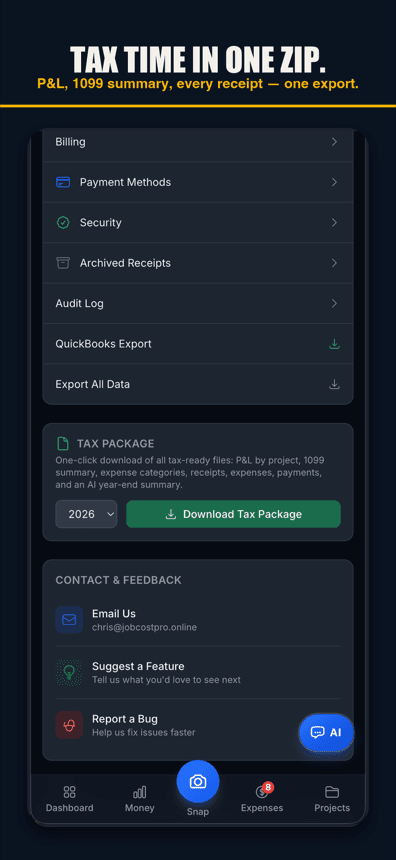
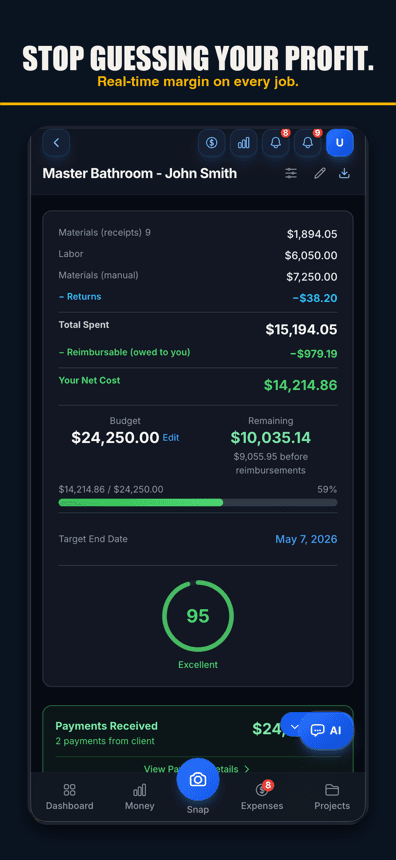
The three formats the export engine produces
All three now have their own buttons in Settings. The default is the CSV— the format QuickBooks Online imports and the one almost every bookkeeper wants. Right below it sit Desktop's IIF export and the full ZIP bundle, and every project screen offers the same three-format choice scoped to that one job.
| Format | Built for | What it is |
|---|---|---|
| CSV | QuickBooks Online | The one-tap export. Clean columns your bookkeeper can review and import. |
| IIF | QuickBooks Desktop | Desktop’s native interchange format, for shops still on Pro/Premier/Enterprise. |
| Full bundle (ZIP) | Your accountant’s whole month | Transactions CSV plus the actual receipt images and invoice PDFs, with a README. |
The CSV carries the columns bookkeepers ask for — date, account, vendor, amount, memo with the job name, and class — and the cost categories arrive pre-mapped to QuickBooks-style accounts: lumber lands as construction materials, sub labor as subcontractor labor, and so on. If you are on Desktop and deciding whether to stay there, that comparison is here.
On the QuickBooks side: what your bookkeeper does with the file
For QuickBooks Online, the CSV is a review-and-enter file: each line already carries the date, vendor, amount, the job in the memo, and a QuickBooks-style account, so the bookkeeper is confirming rows instead of deciphering photos. Most matter of minutes, not the old hour. For Desktop shops, the IIF file imports through Desktop's own File menu utilities — its native interchange format since the beginning. Either way, the rule that protects you: import on a rhythm (weekly or monthly), and let the bank feed be the cross-check. If a card charge in the feed has no matching captured receipt, that is your leak detector going off — you found an untracked run while it is still fresh enough to remember.
A month-end that takes twenty minutes
- All month: the crew snaps receipts at the counter — each one goes on its job with one tap. Nobody saves paper.
- Last Friday of the month: one tap, one CSV, emailed to the bookkeeper.
- Bookkeeper imports, matches against the bank feed, flags the two charges with no receipt behind them.
- You answer two texts about two charges instead of reconstructing thirty. Done.
That is the whole system. Compare it to the version where the same month ends with a gallon bag of paper and an apology — same receipts, same books, ten times the friction and a leak you cannot see.
Why the export beats retyping — even with a bookkeeper
- The job tag survives. Each line carries its job in the memo, so the job costing in QuickBooks your reports depend on does not evaporate at the handoff.
- Nothing depends on memory. The receipt was captured the moment it existed. There is no pile, so there is no leak.
- Your accountant gets evidence, not just numbers. The bundle includes the receipt images themselves — audit season becomes a folder, not a shoebox.
Start with the free tier
The QuickBooks-compatible export ships in Job Cost Pro's free tier — 3 projects, 50 receipts a month, full AI scanning, no credit card. Snap your next supply run and send your bookkeeper the file instead of the shoebox. Get it here. And if receipts are your whole bottleneck, the receipt scanner for contractors page goes deeper on the capture half.
FAQ
Can I import receipts into QuickBooks from another app?
Yes. QuickBooks Online imports transaction CSVs, and Desktop reads IIF files. A field-capture app that exports those formats — with the job and cost category already on each line — turns receipt entry into a review-and-import instead of retyping.
What format should a receipt export be for QuickBooks Online?
CSV. Job Cost Pro’s export carries date, account, vendor, amount, a memo with the job name, and class per line, with cost categories mapped to QuickBooks-style accounts — the shape a bookkeeper can review and import without rework.
Does the export include the actual receipt images?
The full-bundle format does — a ZIP with the transactions CSV, the receipt photos, and generated invoice PDFs, plus a README for your accountant. Tap Full QuickBooks Bundle (ZIP) in Settings for everything, or use a project screen’s export for one job. Both spots have an optional date filter, so a big year of receipts can go out month by month.
How often should I export receipts to QuickBooks?
Weekly or monthly, on a fixed day, so the bank feed can act as a cross-check while charges are still fresh. Capture stays continuous — receipts land on jobs in real time — and the export is just the scheduled handoff to the books. Avoid quarter-end batches; stale mysteries are the expensive kind.
Is the QuickBooks export free in Job Cost Pro?
Not on the free plan. The QuickBooks export starts on the Pro tier ($29.99 a month). The free plan includes 3 projects, 50 receipts a month, and full AI receipt scanning, with no credit card to start.